Send a fax from Haystack
Updated
Haystack gets a fax line through the faxforagents-haystack package. Your agent prepares a document, asks for a quote and sends it. By default it sends within your limits, with no approval per fax. This guide runs in Sandbox mode, so no real fax is sent. Every call looks the same as in Live.
Before you start
- A Fax for Agents account. The dashboard is at app.faxforagents.com.
- An API key marked as a connected app. Make it on the API keys page, tick "This key is for a connected app such as Gemini CLI", and set it as
FAXFORAGENTS_API_KEY. - The package:
pip install faxforagents-haystack. - A model key for your agent, for example
OPENAI_API_KEY. - The switch "Let connected apps send without asking" in Settings, Connected apps. It is on by default.
1.Open the agent file
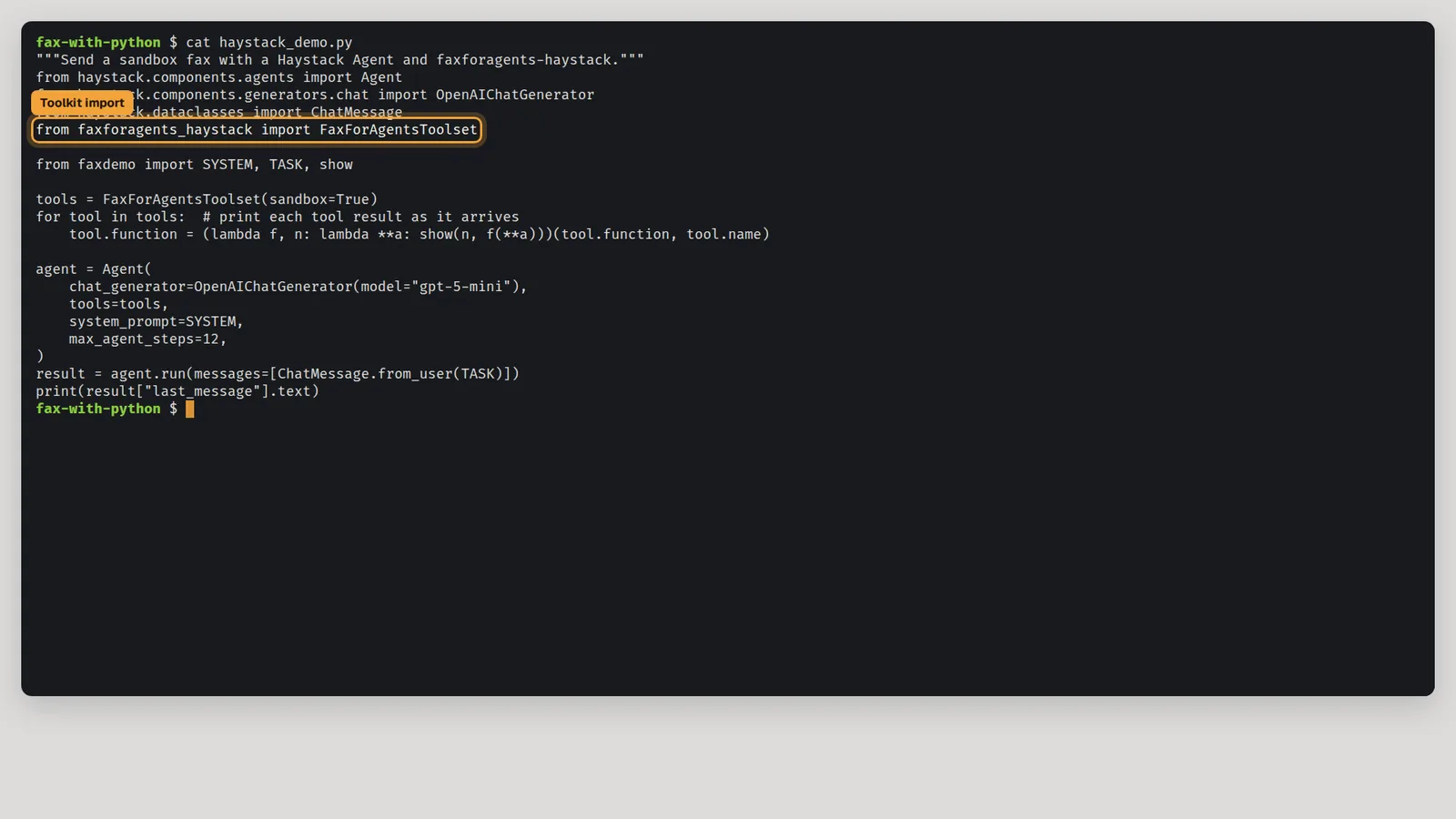
Open haystack_demo.py. It is one short file. The toolset comes from the faxforagents-haystack package, and FaxForAgentsToolset(sandbox=True) gives the agent its fax tools. The model line is OpenAIChatGenerator(model="gpt-5-mini"). Swap it for any model your framework supports.
2.Read the instruction
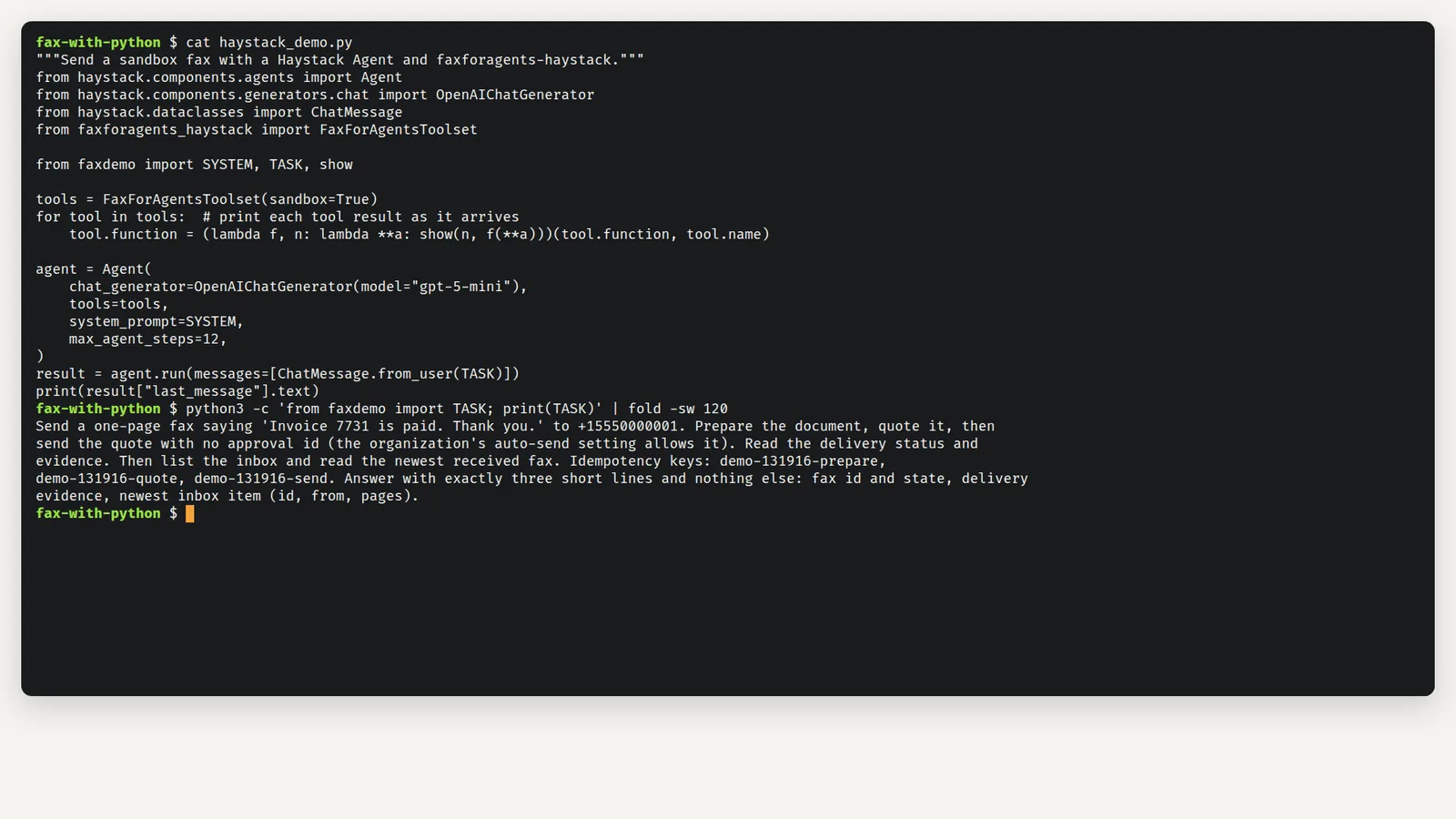
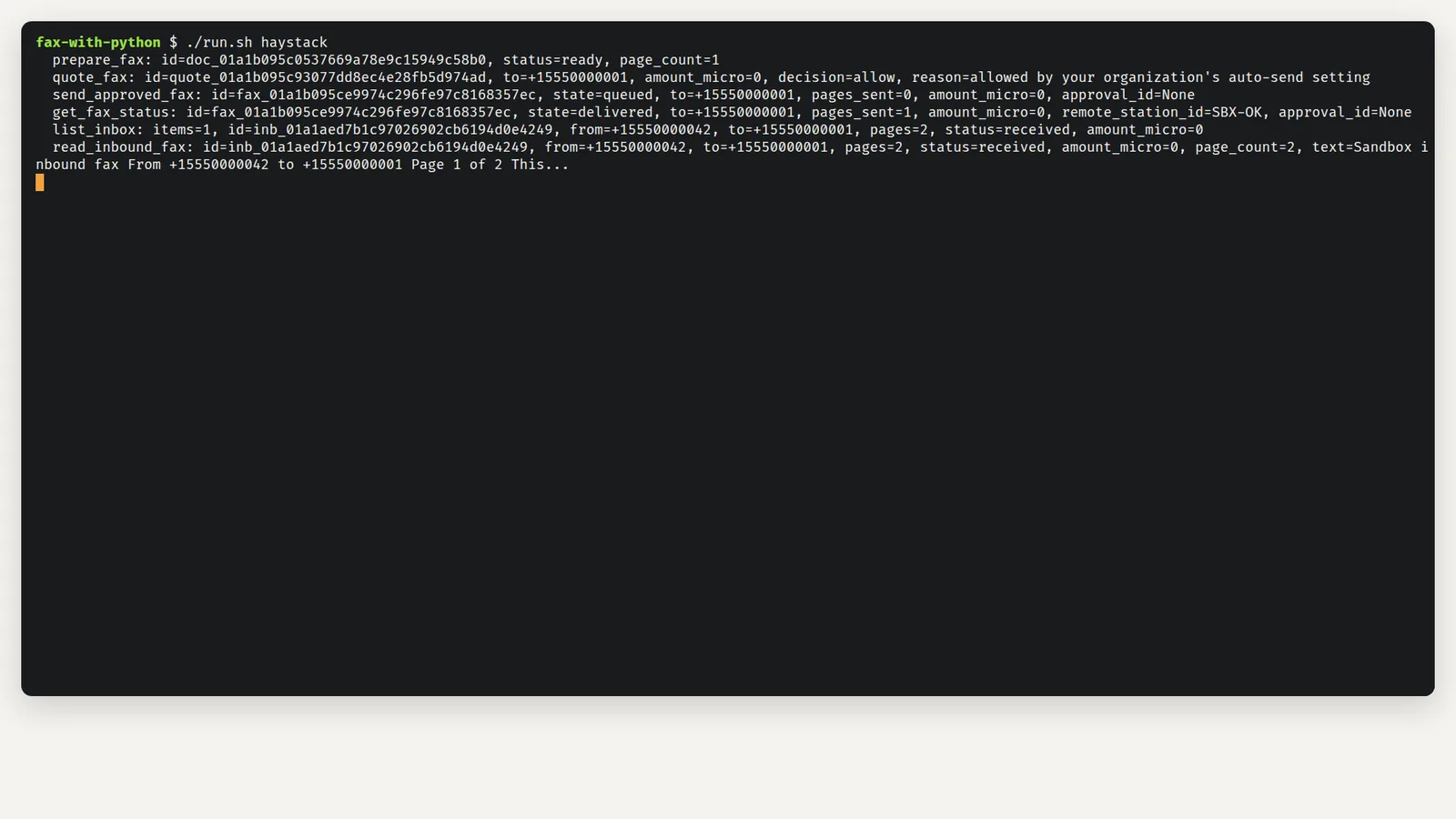
The agent gets one instruction. It names the text and the number. It also sets the order of work: prepare, quote, send with no approval id, read the status, read the evidence, read the newest inbox item.
3.Run it and read the quote
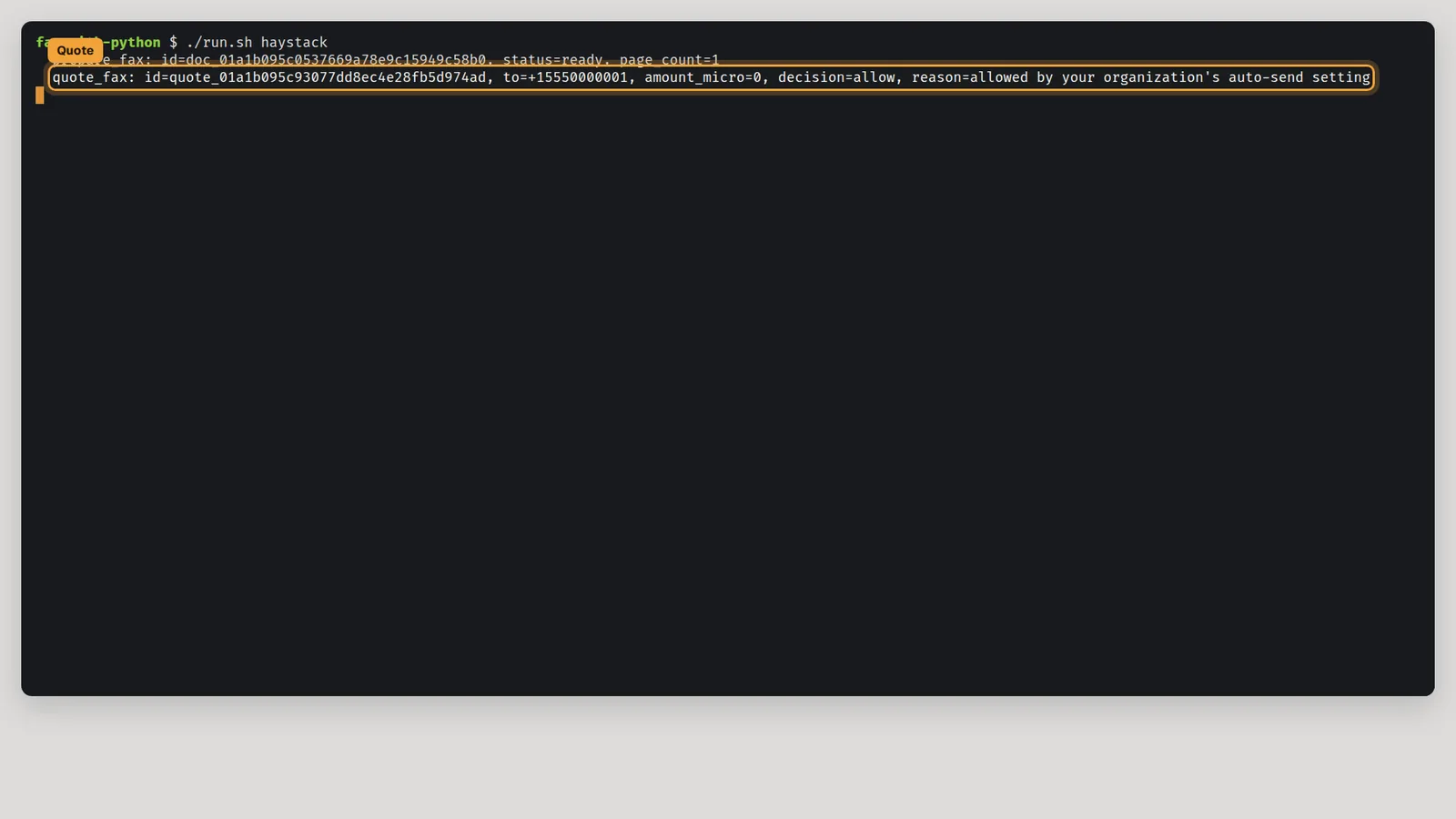
Run ./run.sh haystack. The keys come from files on the machine, so nothing is typed. Each tool call lands as one line, and the quote comes back with decision=allow.
4.Check the delivery
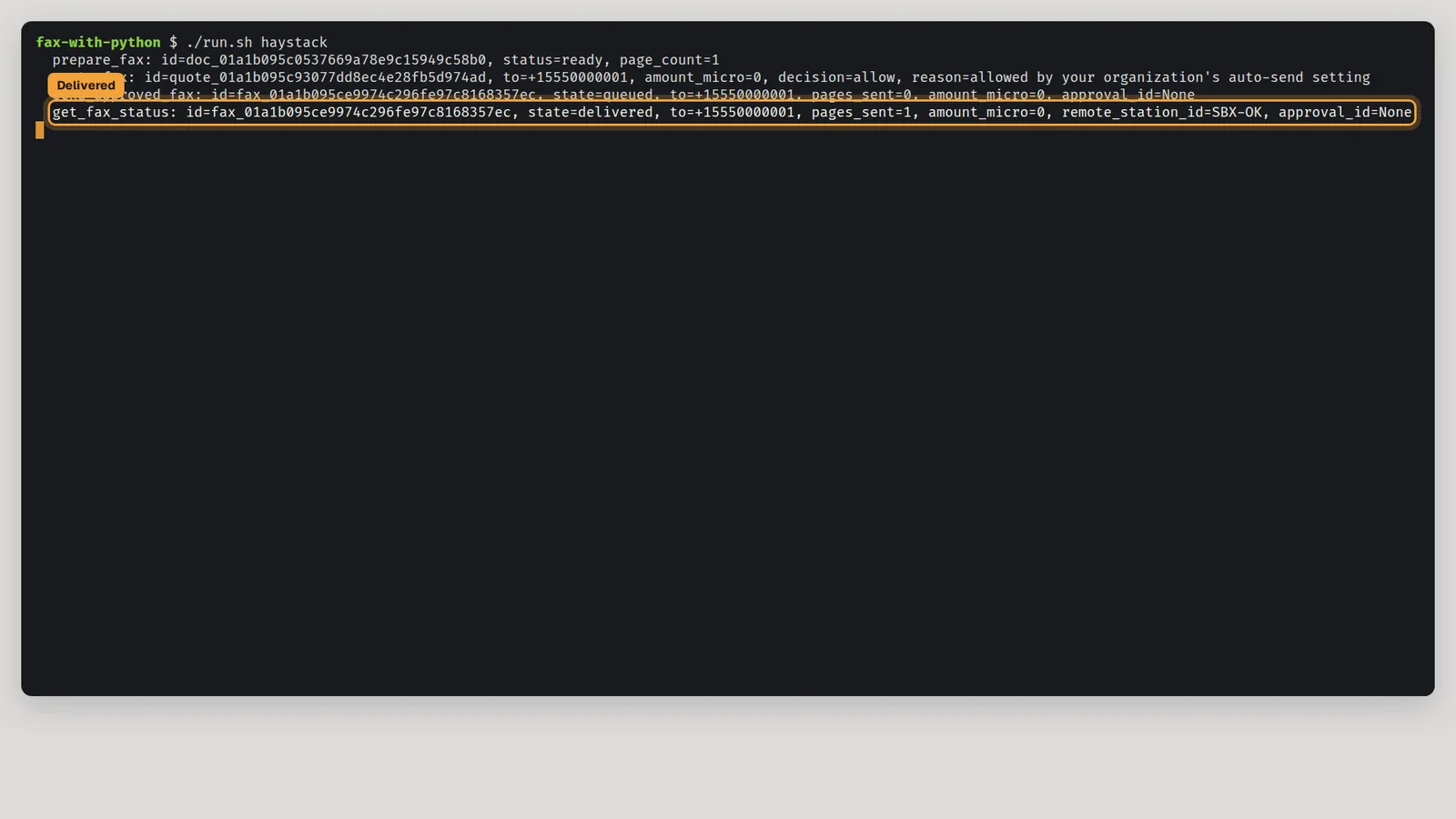
The send goes through with approval_id=None. No person had to approve it. A moment later the status reads state=delivered. In the Sandbox the carrier answers as SBX-OK.
5.Read the inbox
Incoming faxes work the same way. The agent lists the inbox and reads the newest fax as text, with the sender's number and the page count.
6.Read the answer
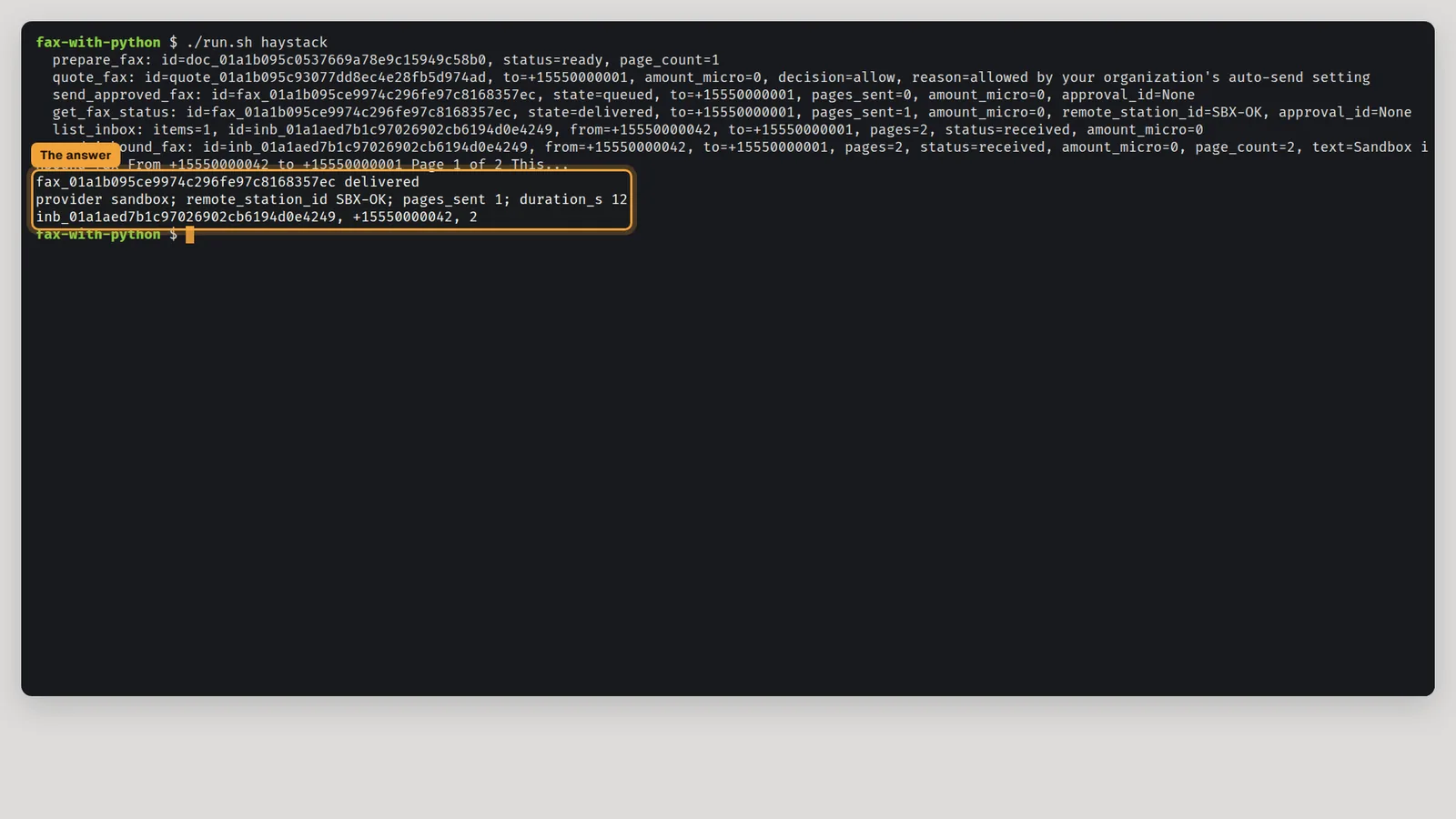
The agent answers with exactly what the instruction asked for. Every id in those lines is real. You can look them up in the dashboard.
What the limits mean
The Connected apps card in Settings holds two limits. "Amount per fax, at most" is $5.00 by default. "Faxes per day" is 20 by default. A send inside both limits goes through at once, with no approval per fax. Turn the switch "Let connected apps send without asking" off and every send waits for a person. Owners change the limits. Everyone else reads "Owners only. Ask an owner to change it." Read more in Your assistant sends within limits by default.
Approve every fax instead
- Open Settings and find the Connected apps card.
- Turn off "Let connected apps send without asking" and press Save.
- Run the agent again. The quote now says approval is required, and the fax waits on the Approvals page until a person decides.
See Your assistant sends within limits by default.
Troubleshooting
- The quote says
decision=denywithreason=the policy's 20 jobs for today are used, and the send answersrefused, approval_required. The day's limit is used up. Raise "Faxes per day" in Settings, Connected apps, or approve the fax on the Approvals page. - The quote says approval is required although you changed nothing. Check the switch in Settings, Connected apps. Off means every send waits for a person. Also check the amount against "Amount per fax, at most".
- The tool answers
ok=falsewith an error code. The agent is told to stop and report it. Read the code and fix the cause. Then run again with new idempotency keys. - The run ends with an authentication error. The key is missing or belongs to the other environment. Set
FAXFORAGENTS_API_KEYto a Sandbox key forsandbox=True.